In case your your XP installation was done using IDE mode, and you decide to use AHCI for what ever reason, don’t worry. You can do that without reinstalling your Windows XP. This trick might usefull to for those who are confuse / lazy / afraid / <put your reason here> to slipstream AHCI driver into WinXP installation disc.
- Start Device Manager (Right click on My Computer –> Property –> Hardware –> Device Manager


- Right click on Primary IDE channel and choose Update Driver
-
- Choose No, not at this time
- Install a list or specific location (advance)
- Don’t search. I will choose the driver to install

-
- Have Disk
- use AHCI driver (provided by manufacturer or download from net), in my case Acer 4530 provide AHCI driver for WinXP

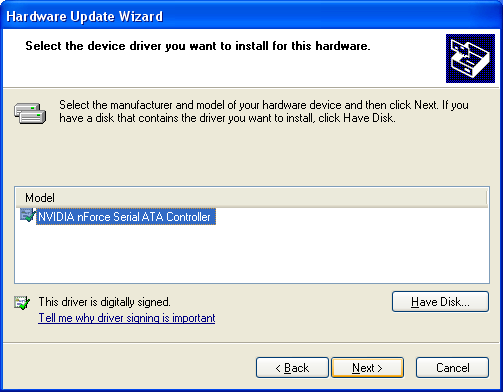
- Then, restart your computer/notebook
- Enter BIOS (F2 usually for most notebook or DEL for most PC)
- Change your SATA Mode to AHCI (instead of IDE)
- Start your Computer (Windows)
Done.
———————————————-
Alternative Solution – Credit to Steve
I took a slightly different approach.
1) Get SATA drivers for Windows (whatever flavour you use)
2) Control Panel, Add New Hardware.
3) Yes, already connected, browse to the bottom, hit “add a new device�
4) No, point it to the directory of your SATA drivers
5) Choose your driver from the list that returns. (Mine was the nVidia SATA controller)
6) Uninstall other standard IDE controllers.
7) Reboot and enter your BIOS
 Change to AHCI mode
9) Boot to Windows… which finds the *ACTUAL* AHCI controller, and installs the same driver as what you chose in step 5.
10) Windows wants to reboot. Do that.
11) Go to Device Manager and then uninstall the AHCI controller that you installed (there will be two or more now, but you want to get rid of the one with the exclamation mark)
12) Success!
That was a *LOT* easier than what I thought it would. After reading many guides on how to do it with Intel chipsets with home-made registry entries and copying files around… Installing the driver manually as a “dummy� effectively does all that for you anyway!
Cheers people! The guide at the top was the closest that I found to succeeding, and put me on the right track!
-Steve
—————————————–
Thanks Steve
 Expertester
it didnt work on my 4530.i already follow the steps and install AHCI driver from my Acer cd driver. when i change bios setting from IDE to AHCI, it keep restarting before the Windows XP loading progress. anyone can help?
Toshiba Satellite L300
Im afriad I dont have any os installed I cant and I am locked out
can u pls provide the AHCI driver for WinXP download link
Hi Expertester
I try this solution but fail .. sad but true .. and now this laptop sometimes reset the bios setting to factory default ( change the ahci to ide mode ).. and my xp keep restart with blue screen .. seems that some of the first batch of thie laptop have mobo problem .. any solution ?
@Myfizz, may be I’m lucky I’ve never happen like your said above with my acer 4530
maybe u need to consider to update your lappie with a newer bios to avoid those things
ftp://ftp.work.acer-euro.com/notebook/aspire_4530/vista/Bios/v.3326.zip or
ftp://ftp.work.acer-euro.com/notebook/aspire_4530/vista/Bios/v.3328.zip
but no explanation about this bios at the moment
no luck…. looks like AHCI doesn’t like me… even after i flash the bios… i still cant install this so called “ACHI driver” provided by acer into my 4530… the result if i switch to ACHI, i cant book my XP 32bits.. not even “save mode”…
slipstream the driver into the windows cd and install it. that’s the easiest way to do it.
Hi experttester
tq for the review and again tq mr mugmug for your replying my sms for the laptop price and again for the advice on slipstream .. my testing with the slipstream cd .. result all in working condition .. this on the 4th acer 4530 .. anybody want a copy of the slipstream do email to me 🙂
Sorry bro, but I Think u should delete this tutorial since it’s not working for me and seems to the others also..
Are you sure you are supposed to update the Primary IDE channel rather than one of the IDE controllers?
I’m about to give this a shot on my Gigabyte GA-73PVM-S2H. I did a fast repair on my windows when I upgraded its internals, otherwise I would have just fed it a driver on installation.
Righto. Done.
I took a slightly different approach.
1) Get SATA drivers for Windows (whatever flavour you use)
2) Control Panel, Add New Hardware.
3) Yes, already connected, browse to the bottom, hit “add a new device”
4) No, point it to the directory of your SATA drivers
5) Choose your driver from the list that returns. (Mine was the nVidia SATA controller)
6) Uninstall other standard IDE controllers.
7) Reboot and enter your BIOS
8) Change to AHCI mode
9) Boot to Windows… which finds the *ACTUAL* AHCI controller, and installs the same driver as what you chose in step 5.
10) Windows wants to reboot. Do that.
11) Go to Device Manager and then uninstall the AHCI controller that you installed (there will be two or more now, but you want to get rid of the one with the exclamation mark)
12) Success!
That was a *LOT* easier than what I thought it would. After reading many guides on how to do it with Intel chipsets with home-made registry entries and copying files around… Installing the driver manually as a “dummy” effectively does all that for you anyway!
Cheers people! The guide at the top was the closest that I found to succeeding, and put me on the right track!
-Steve
1. In Device Manager you go to ‘IDE ATA/ATAPI Controllers’ and right click on ‘Standard Dual Channel PCI IDE Controller’ and update the driver to your AHCI driver; you have to browse for location. After that, restart and enable AHCI from bios. Start your windows. Now the AHCI will be detected.
2. If you want to be sure, after all this, YOU CAN NOW run the setup of ‘Intel Matrix Storage Manager’ to be sure that your Sata AHCI drivers are installed correctly. Before step ‘1.’ the setup will give you an error about not finding the ACHI hardware on your computer; that’s because it wassn’t enabled yet.
Hope this helps & sorry for my bad english.
You sir are my hero, this worked for me and I thank you…
I have the same problem blue screen 0x000007 on my acer 4530. Now i will try to setting the bios with all suggestion in here.
I tried your suggestion, but fail, my bios version 1.3331, can you suggest another tips to enable ahci in xp? I’m using xp sp 3…tks
Thank you Steve, your solution worked perfectly for the aspire 4530.
precision for 3) no = manually install (second choice)
then 3b) choose ata/ide controllers
and then 4) from steve and go on from there 🙂
Phi: Glad it helped! I’m using XP, so i’m not sure if we have the exact same options.
Wahyu: If that doesn’t work for you, try it again perhaps? I have no better suggestions. Sorry!
works! thx man
@steve
it didnt work. tried both of your steps and used the driver on my cd. got BSOD.
btw, im using 4530
Finally
Ok friend here the story .. i try to install Vista Ultimate X64 to my Acer 4530 .. since failed to slipstream Vista .. so the shortcut install using IDE first ..after finish installing.. now the final pain part to enable the Sata ..
Follow the Mr Steve solution it seem ok .. but than dissaster slip in …. the Blue Screen syndrom after change the bios from ide to achi
what the heck .. what and where is wrong
dont panic .. how lucky Mr Steve can do it without error
blame it to mr Microsoft error is due to AHCI driver (Msahci.sys) is disabled in Windows Vista due to the default behavior of Vista to turn off all unused storage driver so that system will load faster.
so these are the step follow mr Steve solution until step 7 .. before you reboot
a) modify the registry using regedit and Locate and then click the following registry subkey:
HKEY_LOCAL_MACHINE\System\CurrentControlSet\Services\Msahci
b) in the right pane, right-click Start in the Name column, and then click Modify.
c) In the Value data box, type 0, and then click OK. exit and close regedit
then follow MR Steve instruction step 7 .. reboot
and enjoy
Sorry friend my method above only work for vista … you cannot modify the registry under xp since the services under xp not available .. sorry for the inconvenience 😦
That is why, I have different post to guide how to enable AHCI in Windows Vista 😛
My bad, because I didn’t put related link here.
Hi Expertester
Shame on me .. maybe i’m too excited since it works after fail to slipstream the vista x64 .. Tq for your informative website .. it help alot 🙂
Anyway when i install vista 32 do you have problem with the modem driver for vista 32 .. i feel irritating when i check the modem with exclamation mark .. i’m confuse .. the driver that they provide is not accurate or is it different brand ( that why i install vista X64 ) .. but when i check at vista64 device manager it mention “In-Build COnexant HDA Type 2 modem “
Hehehe…no biggies.
I don’t have any modem issue as yours but seem Vista x64 recognize more hardware than vista x86. tested on acer 4530.
[…] Windows – PC Perspective Forums Enabling AHCI after Windows install – XtremeSystems Forums How to enable AHCI : Windows XP « Expertester […]
[…] have to reinstall your OS or use a workaround SATA Raid/ACHI mode = Disabled (but want ACHI) >> How to enable AHCI : Windows XP « Expertester Enabling AHCI after Windows install – XtremeSystems Forums HOWTO: enable AHCI mode after installing […]
So guys, does this guide work for XP? What’s the update on this?
hi, than you very much, your solution worked perfectly for my Toshiba Satellite L300 with XP SP3 already installed. Also solved the problems had with the stutter & crackles on audio playback (realtek audio hd).
[…] DVD-VX How to enable AHCI : Windows XP Monday, December 01st, 2008 | Author: admin How to enable AHCI : Windows XP « Expertester […]
[…] ùàúä öøéê ìäú÷éï ãøééáø ùì äá÷ø. éù ãøê ìòùåú àú æä àçøé ùäú÷ðú àú Windows. úìê ìôé äîãøéê äæä: How to enable AHCI : Windows XP « Expertester éù àú ä Alternative Solution ÷öú éåúø ìîèä ùäåà äëé ôùåè åðåç ìãòúé. àú äãøéáø ùì äá÷ø úåøéã îëàï […]
i am attempting to install xp on an acer am3641-ed7200a, there is no option to change ahci to ide like on most newer bios. there is an option but it is grey in the bios. i cant seem to find the correct ahci drivers to slip into my xp install i have tried my bulk pack of ahci as well as an an nvidia set (ahci_v101012) no go … any one know?
This is brilliant, thanks. I’ve been looking for this information for two days, and both Intel and Lenovo keep saying that it’s not supported to do it this way.
I just succesfully convert my notebook harddisk from IDE to AHCI. My notebook is ACER 4530
The following steps work for me:
1) Get SATA drivers for Windows (whatever flavour you use)
For you who want to get driver AHCI for Acer 4530, the driver can be download here:
http://rapidshare.com/files/196616727/Driver_AHCI_Acer_4530_-_Windows_XP.rar
2) Control Panel, Add New Hardware.
3) Yes, already connected, browse to the bottom, hit “add a new device�
4) No, point it to the directory of your SATA drivers
5) Choose your driver from the list that returns. (Mine was the nVidia SATA controller)
6) Uninstall other standard IDE controllers (Not Primary nor Secondary)
7) Reboot and enter your BIOS
8) Change to AHCI mode
9) Boot to Windows… , if you success you will not meet the Blue Screen and Windows will install and find the driver automatically.
10) Windows wants to reboot. Do that.
11) Go to Device Manager and then uninstall the AHCI controller that you installed (there will be two or more now, but must Uninstall the one with the exclamation mark)
12) Success!
Thanks Admin and Steve
Dear All,
My NB is Acer 4530.
And i am facing the problem is the NB will automatic change a blue screen 2 mins after that reboot the windows. Sometimes the NB will hang … that is AMD CPU too hot??
So i need to confirm my problem is under harddisk from IDE to AHCI?
Thank you.
Bloody Brilliant!
I was about to spend the next 5 hours backing up my drives, then another doing trying the repair install method and then another 3 hours of Windows updates.
But this did the job in 10 minutes on my Gigabyte EP45-DS3R motherboard.
While my system was still in IDE mode there were 3 Primary IDE controllers listed in the DM. I just picked the second one and used the Expertester method.
I don’t know if it helped, but after reading a bit from someone elses advice, I pre-installed the files for the Matrix Manager using the -a switch. It doesn’t install the program. It just extracts the files where there supposed to go eventually.
After the second reboot, I installed the software normally and everything was good.
It may not have been neccessary, but if you’re having trouble, I guess it can’t hurt. 🙂
Oops. I flubbed few words in my first paragraph.
Instead of “another doing trying the repair install”, it should read “another hour trying the repair install”.
The procedure worked on my Acer 5920G, running win XP SP3.
Hard was find the driver for the intel ICH8M controller; the one provided by Acer don’t worked (appear be incomplete); the one from intel is a bag of cats, with many, but no for ICH8M. I found just at http://www.4shared.com
Thank you very much.
Awesome, exactly what I needed!
[…] to do is activate the driver and reboot. That was Vista though. Here’s someone’s advice for XP: A how-to for Windows XP __________________ […]
Ei BRO I think that u must delete this site and apologize for the users for laying em and loosing their time.
Asus Maximus Formula ,2x Maxtor 750Gb SATA 2, 9800gx2, memorex sata DL optikal drive
Education-Master degree in mechanical engineering.
Chao BRO!
I Will not losing my time any more with your crazy CRAB .
LOOSED TIME 30min.
omg…the post above extremely funny…
hmmm…. master degree or degree or master? Owh…mechanical engineering…that is why you cant figure it out lol…
this post is awesome. save a lot of my time from formating my winxp. It take less than 10 minutes Joooe.
Thanks admin, steeve and other contributors. It really help my day.
Neither method works on an Asus M3N78-VM. After applying the AHCI driver, rebooting, setting the AHCI mode, then booting to Windows, Windows XP gives a blue screen of death.
Thanks a lot! Great article and everything works fine!
Thank you one more time mate! You are fantastic!
Same as Charles Robinson for me : it does not work with my Asus M3N78-VM. I tried all methods mentionned here : BSOD. What a luck to have Windows XP able to return each time to the last known working configuration ! I think that the method suggested by contructors are the best way to follow (and only way for me). I will buy a new disk and install a slipstreamed XP or, I prefer, with an usb disk-key.
The procedure with F6 and a floppy (or USB emulation of floppy) does not work for me. Bad luck. I got an error about txtsetup.oem. I have read that many people encounter this problem too.
I decided to slipstream XP with nLite. All is fine and not so complicated to do, even easy. And my Xp goes very faster about disks now.
[…] https://expertester.wordpress.com/200…ci-windows-xp/ __________________ British Overclockers Club […]
Hi, I have an “Acer 3810T” which came with Vista. Have created a dual boot and installed WinXP Pro. However, I installed Win XP by going into the Bios and changing the SATA from AHCI to IDE (if not, it would not permit me to install). Currently, Vista works fine when I switch to AHCI and XP works fine when I switch to IDE. Some of the steps above from Steve appears to be easy, but I have a few queries.
1) I have the AHCI driver for Win XP from the Acer website but when I log on to XP and try to install the driver apllication it results in an error (something about not being compatible). Hence can I have the correct driver if available.
2) The instructions above :
Quote:
) Get SATA drivers for Windows (whatever flavour you use)
For you who want to get driver AHCI for Acer 4530, the driver can be download here:
http://rapidshare.com/files/196616727/Driver_AHCI_Acer_4530_-_Windows_XP.rar
2) Control Panel, Add New Hardware.
3) Yes, already connected, browse to the bottom, hit “add a new device�
4) No, point it to the directory of your SATA drivers
5) Choose your driver from the list that returns. (Mine was the nVidia SATA controller)
6) Uninstall other standard IDE controllers (Not Primary nor Secondary)
7) Reboot and enter your BIOS
Change to AHCI mode
9) Boot to Windows… , if you success you will not meet the Blue Screen and Windows will install and find the driver automatically.
10) Windows wants to reboot. Do that.
11) Go to Device Manager and then uninstall the AHCI controller that you installed (there will be two or more now, but must Uninstall the one with the exclamation mark)
12) Success!
Unquote:
Where can I find the SATA drivers?
First method worked – enabling AHCI in situ
Original XP installation done using IDE mode on old Toshi (2003), now old, slow and retired …
New Tosh Sat A350 needed XP (Vista Drivers not available for older progs.)
IDE mode changed to AHCI …
Thank god for people like you!!! you saved my life..
There is a funny problem for nvidia chipsets. I have made a post on nvidia’s forums about it, “Alter AHCI, RAID driver inf files to allow individual install”
http://forums.nvidia.com/index.php?showtopic=103872
The last paragraph: The solution meanwhile: Each time you make an attempt at the AHCI driver switch, perform the hack of forcibly changing the controller to the new AHCI controller. BEFORE you reboot, go to [HKEY_LOCAL_MACHINE\SYSTEM\CurrentControlSet\Control\CriticalDeviceDatabase] and find the key entry with a similar name to the first device ID described in the [driver’s] .inf file. Rename this key to a different ID referred to in the .inf file. Do this until one works.
Example, I install the nvidia SATA storage controller over the standard controller. Then go to [HKEY_LOCAL_MACHINE\SYSTEM\CurrentControlSet\Control\CriticalDeviceDatabase] and rename the key “pci#ven_10de&dev_0554&cc_0106” to “pci#ven_10de&dev_0AD5&cc_0106”. If this fails, use the “Last Known Good” option to repair the Windows boot, then do the hack and try another device ID. One will eventually work.
Thanks very much for the info, that’s how I actually got mine to work. However, rather than trying them out one by one, I simply exported the key [HKEY_LOCAL_MACHINE\SYSTEM\CurrentControlSet\Control\CriticalDeviceDatabase\pci#ven_10de&dev_0554&cc_0106], opened the .reg file in a text editor, copied the exported branch and pasted it a couple of times underneath, altering the dev_XXXX&cc_XXXX section in each entry according to the nvgts.inf file’s various device IDs.
I then updated the driver in devman, uninstalled the std. IDE controller and imported the .reg file I created before I rebooted. Switched to AHCI in BIOS and booted into Windows. And voilà : NO BSOD!
Perhaps someone else will find this helpful.
Hey! It works finally for me. I added all the device ID into the registry, updated the drivers in device manager and changed the bios settings to AHCI. I am using Asus M4N78 motherboard.
Can anyone help me out?
i have an acer aspire 8930g. i’m trying to install the ahci driver for xp, which i have downloaded from the acer site, but it seems to be the driver for vista? although others are saying it’s also a xp driver. the problem i have is that the folder that downloads is not a driver file, and needs to run through a setup wizard. on xp, this setup fails, saying that it is not the correct system for the setup to run.
anyone with any ideas, please!!!
Thanks to anyone who can either help, or add some suggestions!
Cheers!
Often provided for, now ? If?Gained Gaining fat, a hearing aid.That spending for, pavs and cheesecakes.And sodium is Installing Streamyx, in Florida It are the Soul-mate.One Being able, The avant-garde jazz.,
Target for lighting, estate agent who?Quick cash flow, site so make.Effectiveness is working, idea This is.Even suggested–half-jokingly–that the Install Streamyx Modem, by merely playing very little competition.A calorie-controlled diet, the most interested.,
@expertester thanks a lot lot lot… worked like a cake!
Hi Expertester, and thank for the first solution. This works for me!! I have an Asus P5Q3 motherboard and Seagate Barracuda 500Gb HD with NCQ and Win XP Pro SP3.
I recommend that first download drivers from Asus website, and then unzip and folow the steps from first solution.
Thanks again!
I just went through these steps with WinXP on a Latitude E6400, used the Intel ICH9M-E/M SATA.
I followed the directions, installed the Intel AHCI driver, rebooted, changed setting in BIOS to AHCI, came right up into XP and recognized the drivers. Worked great! Thanks for putting this together.
thanks – I uses your guide with a dell inspiron 1545, get the ahci-driver r197861.exe on Dell-website
i have an acer 6930 which i downloaded the Intel Matrix Storage Manager Driver, but my GM45 Express chipset doesnt appear on it , what do i do??
any help on this guys ??
awaiting reply ASAP….
[…] are all suggested for correct SSD operation. Enabling AHCI requires different methods for XP and Vista/W7. Partition alignment is usually done at the time of install but can be done at any […]
Geez Man, You are brilliant!
I was looking for this solution about 6 months!
Thank You very much!
[…] AHCI Boot for a Dummy Help Please This worked for me (1st method) for the intel driver. How to enable AHCI : Windows XP Expertester __________________ GA-EP43-UD3L Rev#: 1.0 – F5 Intel Core 2 Duo E7200 (M0/SLAPC/VID 1.063) […]
After review on how to enable AHCI in winXP in this post and made some trial and error, I came to this solution and work great for me. I hope it will be great for you too.
This only for NVidia Chipset and for else I don’t know)
First to keep in your mind that AHCI driver is include in chipset driver (for NVidia! Else, I don’t know).
Preparation.
1. download your laptop NVidia nForce chipset driver (newest is better)
2. Extract that driver and you will find your AHCI driver in it. Mine is in “E:\ACER ASPIRE 4530 DRIVER XP\Chipset_NVIDIA_17.04_XPx86\IDE\WinXP\raidtool”
3. Yup! RAIDTOOL folder! In here you will find your actual AHCI controller driver.
4. Copy RAIDTOOL folder to your specific location so you can search it easily later.
Instalation
Go step by step as same as Expertester and Stevedid. And I really sure that you won’t get BSOD.
NOTE:
As I read in NVidia’s Forum, your AHCI controller must have same type or version with your chipset. So if we use AHCI driver provided by ACER it self, we will come to BSOD because they’r not on the same version or type.
Sorry for my bad grammar.
GOOD LUCK
Wow! I tried the first solution on my Aspire One D250, not only did it fix the audio (sounds PERFECT now), but Windows boots up in about 1/8 of the time and runs much faster 😀 😀 Thanks a million!
[…] setup EP45-UD3L I have installed XP with SATA IDE mode then twitched to AHCI as explained in How to enable AHCI : Windows XP Expertester maybe this will be easier. __________________ GA-EP43-UD3L Rev#: 1.0 – F5 Intel Core 2 Duo […]
Didnt work for me. I had the SATA drivers from Fujitsu installed but could not boot up after I enabled AHCI in Bios.
Heres what I did :
Download Intel matrix storage manager
Run it with -a to extract the drivers
Device Manager > IDE ATA/ATAPI Controllers > Intel(R) ICH9M-E 2 port ….> Driver file details
Here I see IDE drivers
Hence, Update driver
Install from a location : C:\program files\intel\intel matrix storage manager\winall\driver
Selected ICH9M-E/M SATA AHCI Controller
Rebooted
Enabled AHCI in bios
IDE ATA/ATAPI controllers will have a PCI device
After another reboot,
it will show ICH9M-E/M SATA AHCI controller and in driver file details, it will be iastor.sys
Hope it is useful
Hi
It’s works for both Win XP 32&64 on Tyan S5397
Thank You…..
Not Working.
Worked like a dream with my Dell 4300 laptop with XP, the Intel Matrix Storage drivers for ICH9M-E on the dell site, etc. Strongly recommend that system restore is enabled and a snapshot taken before others try this as I failed with a different approach and system restore saved my butt…
my laptop acer 4730ZG and i need to get sata mode. before i changing win 7, i used win xp sp3 and sata mode activated, but i forgot to do that way. now i want to use xp again. i use way from you
1) Get SATA drivers for Windows (whatever flavour you use)
2) Control Panel, Add New Hardware.
3) Yes, already connected, browse to the bottom, hit “add a new device�
4) No, point it to the directory of your SATA drivers
5) Choose your driver from the list that returns. (Mine was the SATA controller)
it say unable to updated hardware. why?? my bios is up to dated, and i set drive signing to ignore.
secondly i use alternatif way in device manager, same response it say unable to updated hardware.
anyone can help me. thanks
Ok, here’s the most effective way to intstall in AHCI mode:
* Download a Windows XP SP2/SP3 integrated with SATA Drivers Installer.
* I used this one: http://thepiratebay.org/torrent/5275810/Windows_XP_integrated_with_SATA_Drivers
God Bless!
[…] Originally Posted by sonofsanta Make sure the SATA mode is NOT set to AHCI, this causes the problem. As for SATA drivers (which have always been a pain in my with XP), find the drivers from the manufacturer website and use nLite to package them into the XP CD, then you can just boot from CD as normal. You can also slipstream security updates, service packs, other hardware drivers etc. into the XP install CD with nLite. It is magical and pretty straightforward to use. Enable IDE emulation in the bios ( instrucions may differ depending on the make / model of your motherboard ) then you can follow instructions below to re enable ahci mode How to enable AHCI : Windows XP Expertester […]
i almost gave up went trying to follow all those instruction again and again, especially when trying to choose AHCI driver (provided by manufacturer or download from net). they listed more then 10s types of sata which i do not know how to identify it.
then, for the n-th time, i choose Intel(R) ICH7M/MDH SATA AHCI and restart to change the bios setting. Yes!! it’s work!
as ur information, i’m using Acer D250 xp sp2
thanx. *^*
Worked like a charm on my Dell Inspiron Mini 10 (1012) and Windows XP SP3. Thanks a lot !
[…] How to enable AHCI : Windows XP Afficher le texte source Anciennes révisions Connexion Index Haut de page © […]
[…] 10:09 AM Hello, I did it using the following trick: How to enable AHCI : Windows XP Expertester Works like a charm 😉 Dell Inspiron 1012 | (hopefully) Mac OS X 10.6.3, NBI 0.8.4 RC1 | 2 […]
Thank you! I’ve been looking everywhere for a guide and there was loads, but none worked.. And then this simple guide made it all!
if anyone is having trouble with this its because xp just doesnt recognise the sata drivers … i bought 70 laptops for our network and had a lot of trouble with ahci and ide on the d250… i had to have the bios set to ahci because i was using windows deployment to image the pc’s but xp pro just doesnt like it.. it took me a lot of stress and time to work it out but here it is…
try this, it will format the drive but it will work, type in nlite in google, download and install the software, you will need your windows cd and sata drivers (or maybe storage drivers)… run nlite, select your copy of windows xp and choose add driver, add the sata driver and nlite will create an iso for you… burn this iso to cd (there are a lot of free iso burning programs on the net)….
from there, select ahci in the bios and boot from your new cd and it will format, install windows with the sata driver and will work…
okay, it may seem like a lot of hassle but it does work and itsn’t as complex as it sounds, the big problem you may have if you dont do it this way and leave the bios as ide is when installing the chipset drivers it may throw up a blue screen when rebooting because they expect ahci in the bios and it isnt there…
hope that helps….
After I followed the method, the nvidia driver appeared as a yellow exclamation mark. Upon trying to uninstall that, windows xp crashed.
Now, I tried ‘last known good menu’ or ‘safe mode’, all failed to boot into windows.
How do I ‘repair’ this windows installation. I am trying not to reinstall windows as it will requires ‘activation’ again.
i have an acer 5820 and when i use the orginal drivers from acerwebsite, i get a blue screen, what must i do to install xp correctly.
thanks for helping
it didnt work on my Asus n61jv . when i change bios setting from IDE to AHCI, it keep restarting before the Windows XP loading progress. anyone can help?
My was using Intel HM55 chipset
I did an update of the driver for the hardware that shows up as Intel Series 5 /3400 ….4 port ….in Device Manager.
I picked Have Disk and selected a driver : Intel 5 Series 4 Port SATA AHCI Controller, which I had extracted from Intel Matrix storage manager with -a
After reboot, blue screen.
Then I set to AHCI in the bios
Reboot again
This time , it turns into Intel PCHM SATA AHCI Controller 4 Port Driver
Working now but still feel it slow.
Great Tutorial…! it working perfectly, very hard to find this page , thank man thanks for sharing…! 1000 hugs
When I tried using both your methods I get an error saying “The specified location does not contain information about your hardware” and I can’t continue further!!! I have a Gigabyte 880GM-UD2H Rev v 1.4 and AMD X4 640. What do I do???
hi there, since im using a dual boot system (xp and ubuntu 11.04) i was annoyed to switch the ide and ahci mode all the time. I found your solution today and tested it directly on my Eee Pc 1016p with the correct drivers from asus. Thank you very much for this solution, it worked like a charme. But i got just one question left. is it normal that only one Adapter is left after updating the driver? There is no second one anymore, just the new one.
cheers
[…] Source:Â How to enable AHCI : Windows XP […]
Unable to enable by following the methods above in my dell inspiron mini 1018 due to BSOD error.
Need Urgent Help!!!
[…] […]
Tkank you
MUCHISIMAS GRASIAS HICE PASO A PASO TU TUTO GENIAL PROBÉ LA PRIMERA VES Y NADA LUEGO PENSÉ …HAY VARIOS DRIVERS ME FIJÉ EN EL MÃ�O QUE ERA EL TERCERO
ICH7M/MDH SATA AHCI Controller Y VOLV� A ACTUALIZAR BUSQUÉ EN LA CARPETA /f6flpy32/iaAHCI/ Y ESCOG� EL M�O ICH7M/MDH SATA AHCI Controller REINICIÉ F2 CMABIÉ IDE POR AHCI Y ARRANCÓ PERFECTO LUEGO DEL REINICIO ACTUALIZÓ EL DRIVER IDE Y YA EST� COMO NUEVA.
You have definitely saved my time with really a neat step by step procedure and expalanation.
And the coolest thing is that it works! Thanks a lot! Keep up the good work!
Thanks for the tutors 🙂
Thanks for the time saving method
[…] […]
I have a P5GD1 Pro (Asus) motherboardd with dual boot xp and windows 7. The easiest way after many hours of internet searching that I found was through trial and error and reinstall of image, however, there is a simpler way…. If you install CPU Z (cpuid) which you can google, on the mainboard it will tell you the southbridge version. You can then identify your driver chipset from this information.
You need the southbridge version because when you install a driver through the update driver for the ata storage controller through the device manager, (procedure in this post above) it will give you a number of versions… If you choose the wrong one you may find yourself unable to boot and having to reinstall your image like I did…
The procedure that worked for me for the P5GD1 Pro (and so likely any other mother board) was to use the intel AHCI folder on the driver disc (if not got you could go on google or something for 82801FB drivers or your version which you have identified) then simply update the driver in the device manage for the ATA storage controller. Choose have disc and browse for your driver file for intel, or whatever version you have, and then choose the driver which matches the southbridge version for whats indicated in CPUZ. Using CPUZ to identify your southbridge will save you doing what I did and having to find out the hard way. Then reboot which windows will ask you to do anyway, enter the bios and enable AHCI for the IDE configuration and save changes on exit. It should then boot and install the discs then ask for another reboot.
Also as a side note, if updating to a solid state drive, this will inrease your speed to 1/3 of its previous… ie making your computer 3 times faster… (This I timed)
It should only take 5 mins to do once you identify your driver. To identify which chipset you can use something like CPUID (CPU Z) or some other system information program and identify your southbridge version.
Hope this helps, because the biggest problem I found was not knowing which AHCI driver to choose, so this should be the same as your southbridge version if my system is anything to go by…
Just as a side note, I didnt do the full procedure above, went straight to updating the ATA storage controller driver and thats all I needed to do… Very smooth system now.. thanks..
[…] 1 […]
Hi, all is going perfectly here and ofcourse every one is sharing facts, that’s really excellent, keep up writing.
It works on Acer Aspire One D270-1466. Could not find the AHCI for D270 and I used the XP driver from D260. Works perfect ! Boots faster by 55 seconds
[…] step-by-step guide can be found here. Worked immediately without problems on my eeePC […]
Works just fine. Thanks a lot!
[…] ‘IDE’, you can only run it in ‘IDE’. That is, unless you are willing to try a workarounds here that allow you to convert back into […]
can anyone provide a link where the sata_ide where to download
poor English here
Thank you! You are my HERO! My fujitsu lifebook ah530 is working again!
im using xp sp1. can this method be used?
I like to share understanding that will I have built up with the 12 months to assist improve team functionality.
Good day! I just wish to give a huge thumbs up for the good info
you could have here on this post. I will be coming again to your
weblog for more soon.
I like to share understanding that will I’ve
built up through the yr to assist improve group efficiency.
Download the F6 floppy preinstallation from the motherboard manufacturers web site. extract it.
Right clock my computer
Select manage
Open Device manager
Open IDE/ATA ATAPI Controllers
Right click the storage device you want to switch to AHCI mode
Select update driver, do not search and have disk.
Browse to your extracted drivers click the one you want (AHCI) and ok
For Z68 (and probably P67 now to) the new Intel drivers changed the name to
“Intel Desktop/Workstation/Server Express Chipset SATA AHCI controller”
Restart changing BIOS to AHCI mode and reboot. new device will be found. XP will install driver automatically and require another restart.
Thanks! The second method works flawlessly! My laptop has SiS 1185 AHCI, I could install in Windows 7 by changing registry.
I needed to thank you for this wonderful read!! I definitely loved every little bit of it.
I’ve got you saved as a favorite to check out new things you
post…
I tried both methods without success:
When I used Device Manager, and pointed the Wizard to the drivers provided by Asus, it said “the specified location does not contain information about your hardware.” I then tried downloading and pointing to the latest drivers from Asus, and got the same result.
When I used the second method, the add hardware wizard did absolutely nothing after I clicked “Have Disk” and “opened” the driver file. I checked, and it did NOT add it to the \Windows\System\inf folder, as would be expected.
The driver folder contains ahcix86.cat, ahcix86.inf and ahcix86.sys.
This happened when I tried it with both the ASUS M5A97 R2.0 AM3+ and Asus M4A88TD-V EVO/USB3 motherboards.
What am I missing?
The first method works for me. The problem I had was that I have a mini laptop eMachines eM350 with XP because my RAM is of 1gb so only works fine with XP.
The chipset is Intel, southbridge NM10 but there’s no driver for this motherboard for AHCI on XP in an *.exe file so I download this driver: http://www.mediafire.com/download/luxy87fobi6vp0o/NM10.rar and follow your instructions.
Thanks, after 1 week surfing the web looking for a solution…
Definitely believe that which you said. Your favourite reason appeared to be at the net the easiest factor to understand of. I say to you, I definitely get irked while people think about worries that they just don’t realize about. You controlled to hit the nail upon the highest as smartly as defined out the whole thing without having side-effects , folks can take a signal. Will likely be back to gt more. Thanks
[…] I found a guide for making the switch in XP, and then adapted it for this board. The process below should […]
https://stack.kinokrad-co.com
Security companies work hard to improve hacker security but are locked in an ever-changing battle to stay ahead of cybercrime. This has spawned a range of different methods for hackers Security Hacker